Vrbo is one of the few major booking platforms that lets you drop a video tour straight into your listing. Airbnb does not offer that to standard hosts. That gap is an opening. A short walkthrough shows travelers the flow of your space in a way a photo grid cannot, and it answers the quiet question behind every booking: is this place really what the pictures promise?
This guide covers the exact steps to upload a video to your Vrbo listing, the real file specs Vrbo enforces, and how to shoot a walkthrough that earns bookings. If you need to make the video first, Reel Estate can build a real estate video from the photos you already have.
At a glance
- Where: Property, then Edit property, then Video in your owner dashboard
- Formats: mp4 (preferred) or mov
- Length: 15 seconds to 2 minutes, with under 60 seconds preferred
- Orientation: portrait 9:16 preferred, landscape 16:9 accepted
- Resolution: at least 1080 by 1920 (9:16) or 1920 by 1080 (16:9); 4K is not supported
- Review: every video passes a human approval check before it goes live
Why a video belongs on your Vrbo listing
Travelers decide with their eyes, and they decide on their phones. Google's travel research found that 65% of travelers watch online video while planning a trip, and many said it moved them toward a booking (Think with Google, Google and Ipsos travel study). That study is older now, but the behavior has only deepened as short-form video took over every feed.
Strong visuals carry real weight on booking platforms too. Expedia Group, Vrbo's parent company, tells its partners that listings with high quality images can earn far more bookings than listings with weak visuals (Expedia Group partner resources, 2024). A video is the richest visual asset you can add, and on Vrbo it sits right in line with your photos.
Video is also becoming the norm in property marketing, not the exception. In its 2024 Technology Survey, the National Association of Realtors reported that 52% of agents use drone photography or video, making it one of the most common tools in the field (National Association of Realtors, 2024). Guests now expect motion, and a listing without it can read as dated.
There is a quieter benefit as well. A clear walkthrough sets accurate expectations, which filters out low intent lookers and cuts the back and forth that leaves gaps in your shoulder season calendar. For more ways video fills those dates, see five ways to use video to sell your listings faster.
Vrbo video specs and rules
Vrbo runs every uploaded video through the Expedia Group content pipeline, and it enforces a specific set of rules. Get these right before you upload, because a file that misses them gets rejected in review and sent back to you.
Here is what the current Expedia Group video guidelines require:
- File type: mp4 or mov, with mp4 preferred.
- Length: 15 seconds minimum and 2 minutes maximum, with under 60 seconds the sweet spot.
- Orientation and size: portrait 9:16 at a minimum of 1080 by 1920, or landscape 16:9 at 1920 by 1080.
- Resolution ceiling: 4K is not supported. Upload a 4K file and Vrbo compresses and crops it, which is how you end up with a soft, oddly framed clip.
- Audio: only sound you own the rights to. A clear English voiceover and captions are fine. Added music can get the whole video removed or rejected, so skip the trending track.
- What to leave out: other properties, on-screen web links, phone numbers, access codes, and anyone's personal contact details.
One more rule catches hosts off guard. Vrbo no longer supports embedded 3D virtual tours. If you have a Matterport, InsideMaps, or TruPlace tour, you can only reference its URL in the property description, not display it in the gallery. Native video is now the way to put motion inside the listing itself.
Common reasons a Vrbo video gets rejected
Most rejections trace back to the same short list, and every item on it is avoidable:
- Added music. A trending song is the fastest way to get the whole clip pulled. Use natural sound, a voiceover, or captions instead.
- A 4K file. It will upload, then Vrbo crops and softens it in processing. Export at 1080p from the start.
- On-screen contact details. A phone number, website, or booking link anywhere in the frame breaks the rules.
- The wrong length. Anything under 15 seconds or over 2 minutes fails. Aim for 30 to 60 seconds.
- Other properties in the shot. Keep the footage to the single listing you are editing, with no stray units or neighboring homes.
How to add video to a Vrbo listing, step by step
The upload lives a few clicks deep in the owner dashboard. The whole process takes a couple of minutes, plus review time.
Step 1: Open the Video tab in your dashboard
Log in to your Vrbo owner account. If you manage more than one property, pick the listing you want to edit first. From the left menu, choose Property, then Edit property, then Video. That panel is where your listing's video lives.
Step 2: Upload your file
Click Add video, or drag and drop the file straight from your device. Name the file cleanly before you upload, something like beachside-cottage-walkthrough-1080p.mp4, so you can tell versions apart later. Confirm the clip fits the format and length rules above, since a quick check now saves a rejected round trip.
Vrbo is still rolling this feature out, so the video may not appear the instant it finishes uploading. That is expected.
Step 3: Wait for approval
Every uploaded video goes through a human approval process before guests can see it. Reviewers confirm the clip meets the guidelines, that the audio is clean, and that nothing prohibited slipped in. Plan for a short wait rather than an instant publish, and resist re-uploading the same file while it sits in the queue.
Do not have a video yet? You can turn the listing photos you already have into a walkthrough without booking a shoot, then upload the export straight to Vrbo.
How to shoot a Vrbo video that stands out
A great Vrbo video is not a cinematic production. It is a stable, bright, honest walkthrough that shows the space the way a guest would move through it. Save the drone-and-color-grade budget. Vrbo's own guidance points toward short, vertical, voiceover-led clips, not music-video edits.
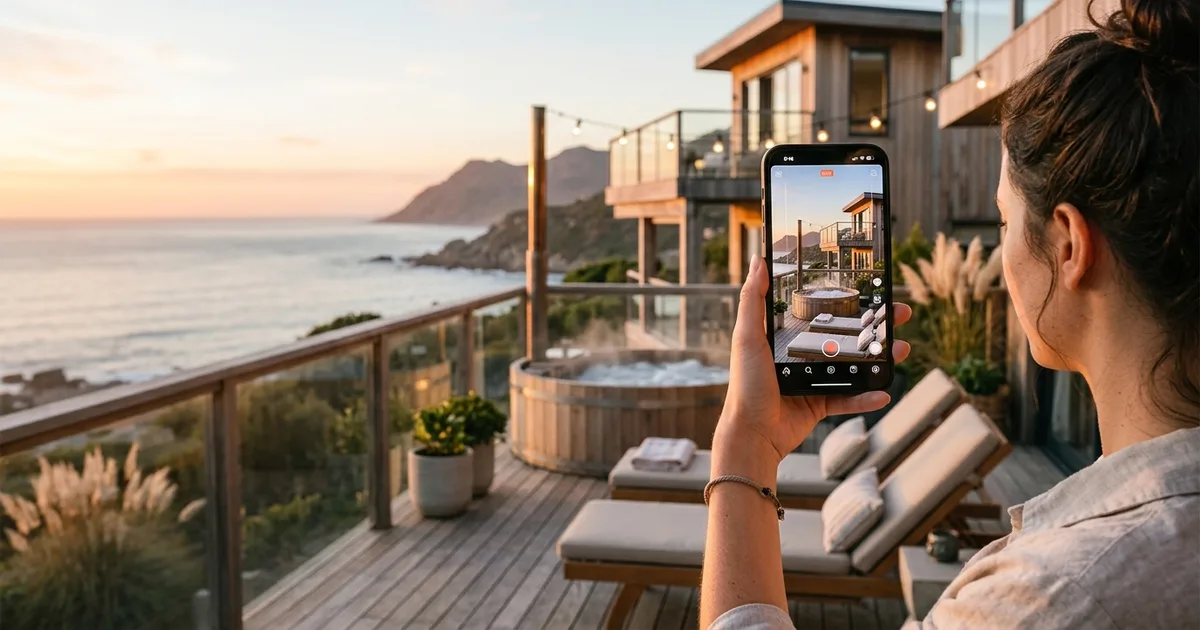
Use a simple structure. Spend about 80% of the runtime inside the property, moving room to room in the order a guest would arrive: entry, living space, kitchen, bedrooms, bathrooms, then the standout amenity, whether that is a hot tub, a deck view, or a custom kitchen. Give the remaining 20% to the location, a short clip of the beach path at the end of the block or the walk into town.
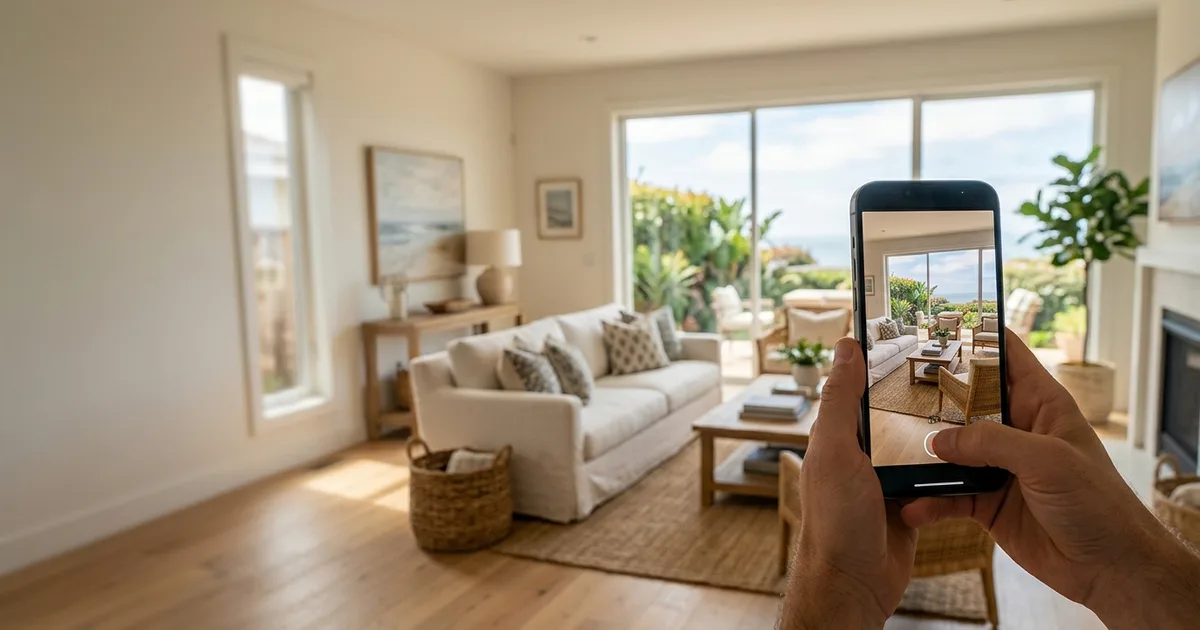
Keep it steady and well lit. Shoot vertical so it fills a phone screen, hold each room long enough to read, and add a short voiceover or captions instead of a soundtrack. If you want a repeatable way to produce these, our guide on creating a stunning walkthrough video covers the workflow from start to export.
Vrbo vs Airbnb: where native video gives you an edge
Native listing video is a real point of difference between the two big vacation rental platforms. Vrbo lets you upload one. Airbnb, as of 2026, does not offer it to standard hosts.
| Video capability | Vrbo | Airbnb (standard hosts) |
|---|---|---|
| Native video tour in the listing | Yes, one clip, up to 2 minutes | No |
| Embedded 3D virtual tour | No longer supported (URL in description only) | No |
| Preferred format | Portrait 9:16, mp4 | Not applicable |
That single difference is worth acting on. A guest comparing two similar properties, one with a walkthrough and one without, gets a clearer read on the place that shows itself in motion. Produce the video once and you can reuse the same clip on social, in your Google Business profile, and in guest emails, so the effort pays off well beyond the Vrbo listing.
Add the video, then keep it working
Adding a video to your Vrbo listing is a short task with a long payoff. Open Property, then Edit property, then Video, upload a portrait mp4 under two minutes, and let it clear review. The harder part, actually having a polished walkthrough to upload, is the part you can automate. If you would rather not film anything, Reel Estate turns the listing photos you already have into a vacation rental video you can post to Vrbo and everywhere else your guests are looking.
Sources
- Expedia Group video content guidelines (Vrbo Help Center), retrieved 2026-07-07, https://help.vrbo.com/articles/Vrbo-video-guidelines
- National Association of Realtors, 2024 Technology Survey, retrieved 2026-07-07, https://www.nar.realtor/research-and-statistics/research-reports/realtor-technology-survey
- Think with Google, travel video search insights (Google and Ipsos), retrieved 2026-07-07, https://www.thinkwithgoogle.com/consumer-insights/consumer-trends/travel-video-search-statistics/
Frequently asked questions
- Can I use a YouTube or Vimeo link to add video to a Vrbo listing?
- You can still add a YouTube link, but a native upload puts the video tour directly in your listing. Upload an mp4 or mov file under the Video tab instead. Vimeo embeds and 3D virtual tours are not supported, though you can reference a Matterport tour by URL in your description.
- What happens if my Vrbo video has background music?
- Vrbo only allows audio you have the rights to use. Added music can get the entire video rejected during Vrbo's human review. Stick to natural sound, a clear voiceover, or captions. This is a review decision, not an automatic copyright filter.
- Does Airbnb support native listing videos like Vrbo does?
- No. As of 2026, Airbnb does not let standard hosts upload a native video to the listing photo gallery. Native listing video is a Vrbo advantage, which makes it a useful place to stand out across the Expedia Group network.
- What is the best orientation and length for a Vrbo video?
- Vrbo prefers portrait 9:16 video at a minimum of 1080 by 1920 pixels, and accepts landscape 16:9. Keep it between 15 seconds and 2 minutes, with under 60 seconds preferred. Most travelers browse on phones, so vertical fills their screen.

Jeff Goyette · Co-Founder & CTO
Co-founder and CTO of Reel Estate, building the AI video generation and staging product.